

Vanilla device — Containers are only available on jailbroken devices. Vanilla devices share a single device identity across all accounts.Containers live on the phone’s Containers tab, in the device detail view on Fleet.
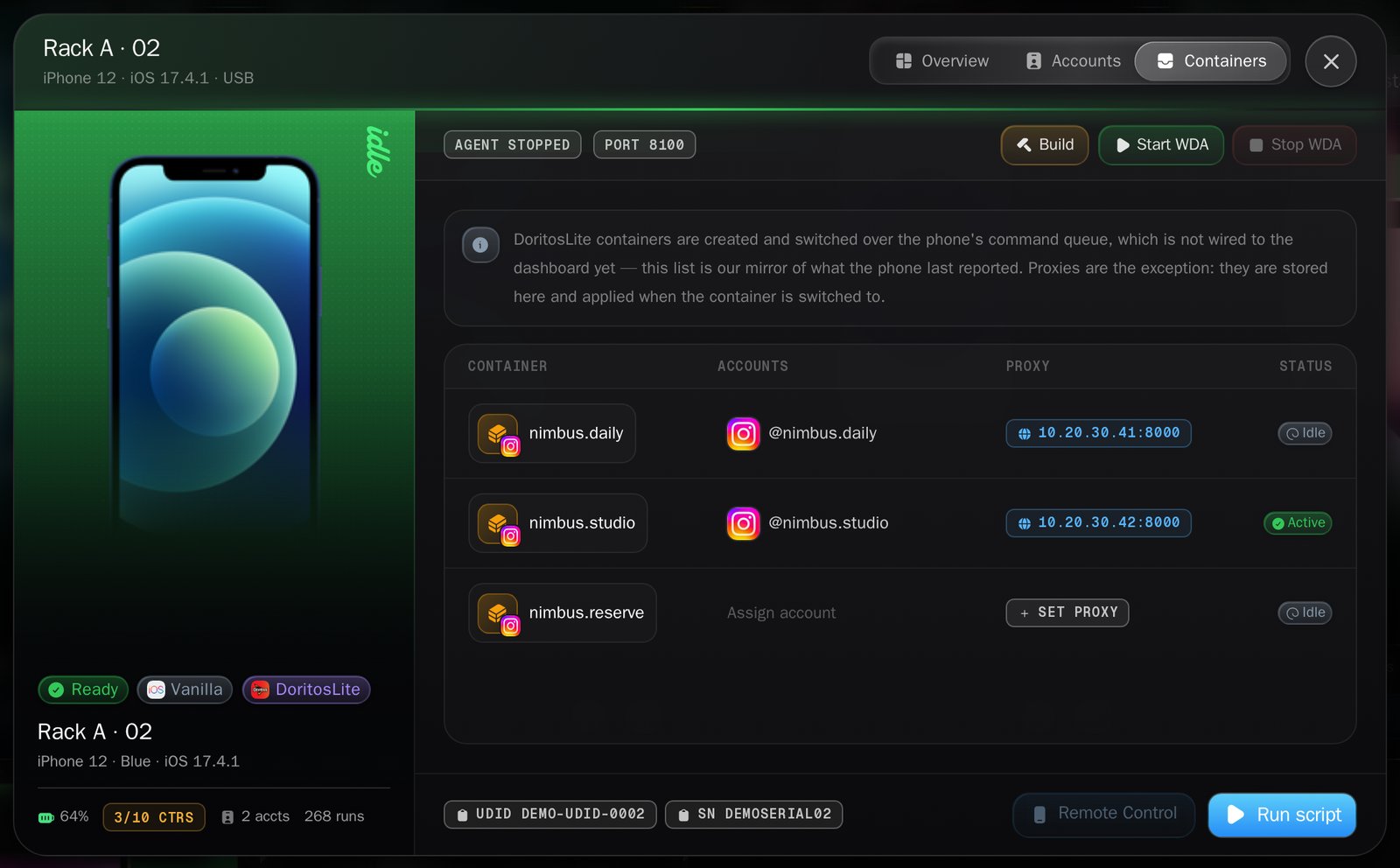
The Containers tab of a DoritosLite phone.
The two providers
Containers come from one of two products. Which one a phone uses depends on whether it is jailbroken.
GrapheneOS phones are a third case: their containers are the phone’s own user profiles,
they are never billed, and they are covered further down.
Doritos
Doritos is licensed once for the organization. Turn it on in Settings, under jailbroken devices — a non-owner sees “Ask an organization owner to enable jailbroken devices.” Each jailbroken phone then needs a seat. Seats are bought in Billing and sit in a pool until a phone claims one.1
Install Doritos on the phone and enter the org key
The phone registers itself and binds by its serial number. The dashboard says
it plainly: “no dashboard step needed. ‘Link manually’ is only for when that
binding never lands.”
2
Give the phone a seat
A phone that activated without one shows “Activated but not on a seat — assign
one to unlock it”, and the buttons read Assign seat, counting what is free
in your pool, or Buy & assign. A phone with no seat left in the pool is
blocked until it gets one.
3
Create containers
On the phone’s Containers tab, use New container. You give a name prefix —
the placeholder suggests
ig_account — and a quantity between 1 and 50.DoritosLite
DoritosLite gives a non-jailbroken iPhone the same idea through a re-signed Instagram build. One key, one phone, forever — and the dashboard repeats that in three places because it cannot be undone.1
Buy a key
DoritosLite keys are bought in Billing, one per phone.
2
Enable the phone
On the phone’s card, press Enable. The dialog is titled Enable
DoritosLite, subtitled “Containers on a non-jailbroken iPhone, Instagram
only.” Press Enable DoritosLite to mint the key.
3
Do the three things on the phone
The dialog lists them as Sideload steps: “Install the re-signed Instagram
IPA on this phone.” / “Open that Instagram build on the phone.” / “Type the
license key above into the activation prompt.”
4
Wait for the phone to check in
Nothing else happens in the dashboard. Once someone enters the key on the
handset, the panel turns green and reports that the phone has checked in, with
the app version it is running. Its containers appear on the fleet card.
- A DoritosLite phone reads Offline most of the time, and that is correct. It heartbeats about every 20 seconds, but only while Instagram is in the foreground. The panel spells it out: “A DL phone is offline whenever Instagram is backgrounded — this is normal, not an error.”
- Creating and switching go through the phone, but you drive them from the dashboard. With the phone’s Companion connected, New container creates a container on the phone — it opens Instagram itself, so nothing needs lining up on the handset first — and the On this phone list switches between containers with Make active. Without that connection the dashboard says so: “Not connected to this phone’s Companion.” The list shows what the phone last reported; Refresh asks it again. Proxies are stored in the dashboard and applied when the phone switches into the container.
One account, one container
A container is only useful once an account is bound to it. On a DoritosLite phone that is the Account for dialog on the container, which explains what it buys you:Runs scheduled for this account will switch the phone into this container first.Bind every account you automate. An account with no container is scheduled without one, and the run happens in whichever identity the phone happened to be left in — which is how posts end up on the wrong account. Several accounts can share a container, and an account already placed elsewhere is marked “in another container” so you do not move it by accident.
Interact with Post does not work on a DoritosLite phone. If you need it on
non-jailbroken hardware, it is not available today.
GrapheneOS profiles
On a GrapheneOS phone, a container is one of the phone’s own user profiles. They sync themselves:GrapheneOS user profiles — each one an isolated identity. A saved PIN lets the Companion unlock the profile after a remote switch.The table lists Profile, Accounts and Keyguard PIN, with chips for
owner,
current and locked. Profiles cannot be created, deleted or switched from this panel —
that happens on the phone, or from the
remote control page. Saving a PIN needs the Remote control
devices permission, because a stored PIN is the ability to unlock the phone from a
browser.
Use Set PIN, enter 4 to 16 digits, and press Save. You then get “PIN saved —
entered on the next profile switch”.
What to read next
Accounts
Bind an account to a phone and a container.
Credits and billing
Seats, keys and what containers cost each month.