

Before you start
- A Mac — Apple Silicon or Intel. There are separate downloads for each.
- The Mac’s login password. macOS asks for it once per session on iPhones running iOS 17 or newer.
- A few command-line tools, listed below. Installing those takes longer than installing the Companion itself, so start there if you are in a hurry.
Get the app
There is no public download page. An organization owner creates a one-time link from the dashboard, and that link works once.1
Open Settings → Downloads
The section is described as “Create one-time download links for the app”.
Only owners can see it; if you are not one, ask for a link.
2
Pick the chip your Mac has
Press Apple Silicon (M-Series) for an M-series Mac, or the Intel button
beside it. The dashboard cannot detect this from your browser — check the
Apple menu → About This Mac if you are unsure.
3
Open the link
A Download Link Created card appears with the link and its expiry. Paste
it straight into a browser address bar. It lasts 24 hours by default and can
only be used once.
4
Open the DMG and drag the app to Applications
The app is called AutoGrowth Companion.
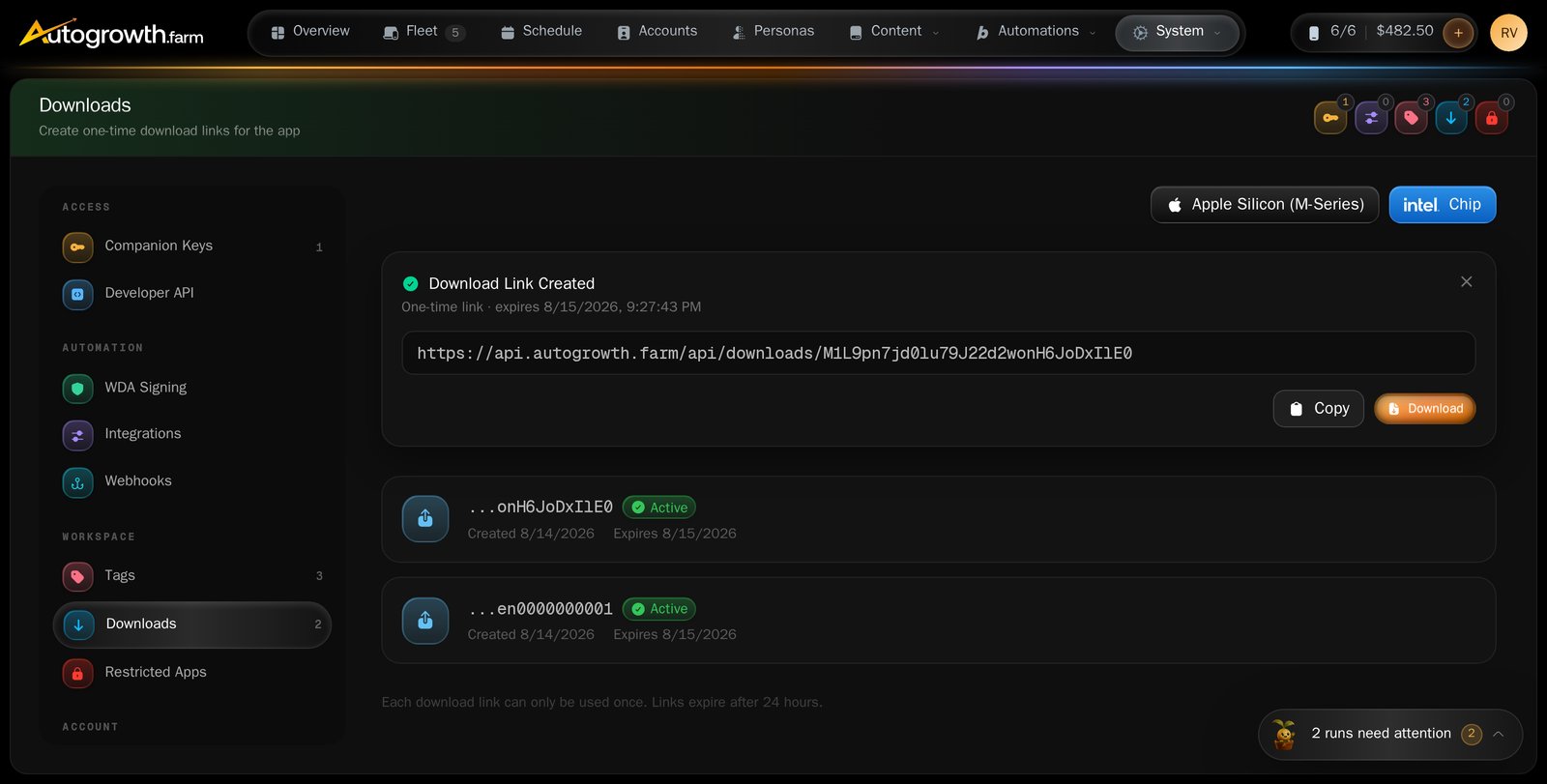
Settings → Downloads, where an owner mints a one-time installer link.
Install the tools it needs
The Companion drives phones using standard Apple and Android command-line tools. They are not bundled, so install them on the Mac yourself. Everything marked “iPhones” is needed before an iPhone will work; the Android rows are only needed for GrapheneOS phones.Xcode has to be installed, but you never open it. The Companion uses parts of it
in the background to see iPhones and install onto them. If Xcode is installed
and the Companion still complains about it, the screen shows the exact command
to fix it:
sudo xcode-select -s /Applications/Xcode.app/Contents/Developer.The dependency screen
The Companion checks for these tools every time it starts — right after you sign in — and shows what is missing with the install command and a Copy button beside each one. The command it shows is generated for your Mac’s own setup, so prefer it over the table above if the two differ. Run the commands, then press Re-check Dependencies. Which screen you get depends on how much is missing:Sign in with a license key
The Companion does not use your email and password. It signs in with a license key you create in the dashboard.1
Create the key in the dashboard
Go to Settings → Companion Keys and press Create Key. Name it after
the Mac it is for — the placeholder suggests “e.g., MacBook Pro, Office PC”.
2
Copy it immediately
The dashboard says “Copy this key now. You won’t be able to see it
again!” and means it. If you lose it, delete it and make another.
3
Paste it into the Companion
Open the Companion, paste the key into the License Key field and press
Continue. You land on the Devices page.

The Companion's sign-in screen. One field, one key.
One key, one Mac
The first Mac that signs in with a key claims it. The Companion says so under the field: “Your license key binds to this device on first use”. From then on that key works on that Mac and nowhere else, and there is no way to unbind it. Try it on a second Mac and you get: “This license key is already bound to another computer. Contact support to move it.” To give a different Mac access, replace the key rather than move it:- In the dashboard, open Settings → Companion Keys and delete the old key.
- Create a new one.
- Sign in with the new key on the new Mac.
Staying signed in
The Companion re-checks the key with the server every five minutes, and again at every launch. If it cannot reach the server it retries a few times and then signs you out — which is why a Mac that lost internet for a while can be sitting on the login screen when you come back. Paste the key again and carry on.If sign-in is refused
What happens on first launch
1
A silent security check
This runs before any window appears. If it fails, a Security Error box
appears and the app closes without opening. The usual cause is a debugger,
proxy or traffic-analysis tool running on the Mac — close those and reopen.
2
The dependency check
If anything from the table above is missing, its screen appears now, over
everything else.
3
The login screen
Or, if you have signed in on this Mac before, a brief blank moment and then
straight to Devices.
4
Phone discovery starts
Anything plugged in appears within a few seconds. See
Connect your phones.
The one macOS permission prompt
The Companion asks for no privacy permissions. It does not want screen recording, accessibility, your photos or your contacts, and it never asks for them. There is exactly one prompt, and it is macOS’s own: a request for your Mac login password, needed to open the secure tunnel that iPhones on iOS 17 and newer require. Type your password and click OK. iPhones on iOS 15 or 16 never trigger this prompt.Updates
There is no automatic update. The Companion checks its version when it launches and when you sign in, and a required update is not a suggestion:- A box titled Update Required appears — “A new version is available”.
- The only button is OK.
- Pressing it closes the app.
What to read next
Connect your phones
Cable, Trust, and the first phone in the list.
WebDriverAgent
Build, Start, Stop, and the two ways it gets signed.