

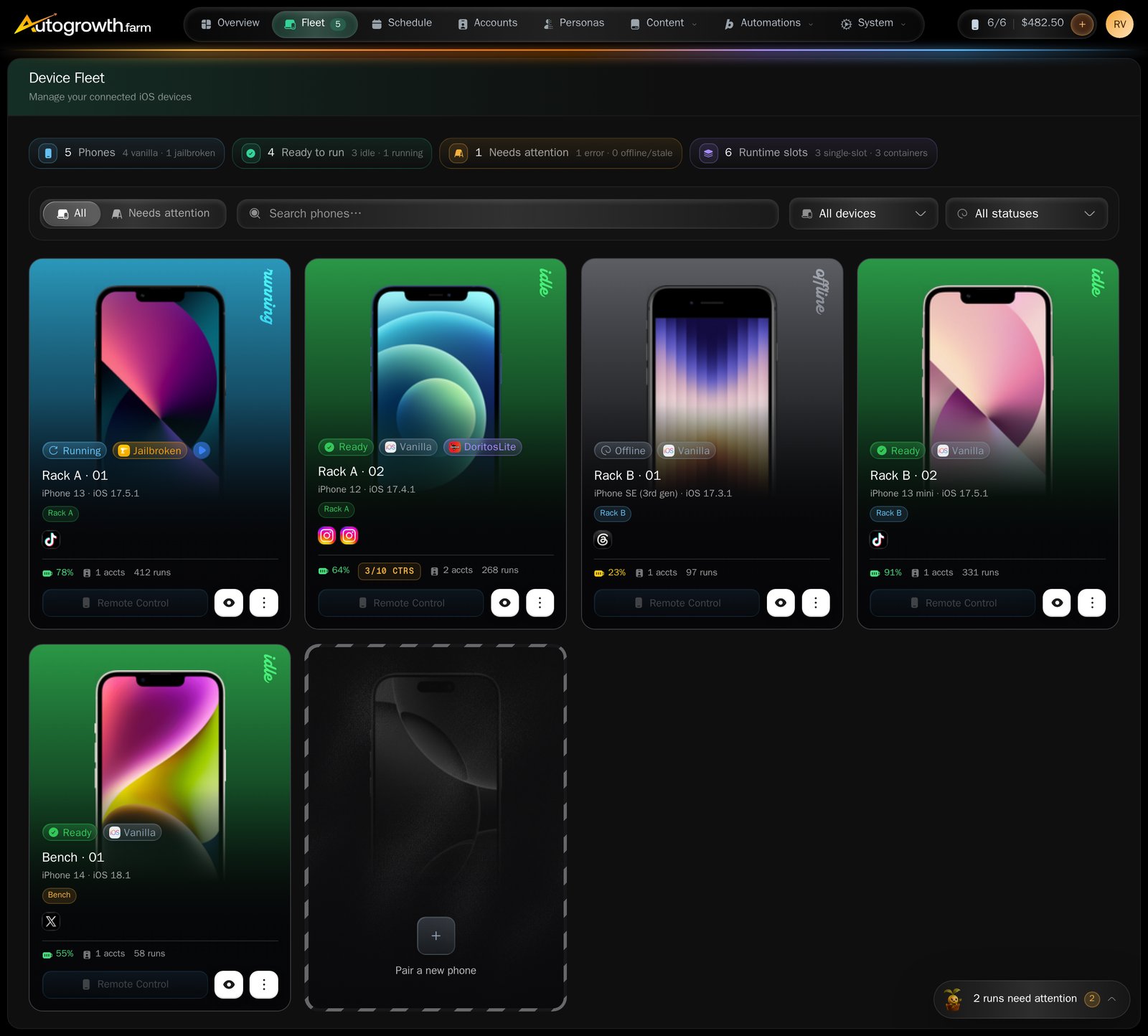
The Fleet page.
What the status words mean
There are seven. Learn these, because every other screen uses the same set.There is no Online status and no Busy status. A working phone reads
Running. A phone that is plugged in and idle reads Ready. A phone that is
mid-run also reads Running — the pill does not tell you whether a job is in
progress. The Schedule screen does.
— while the phone is offline.
Naming a phone
The name comes from the Companion, and it is rewritten every time the phone reconnects. There is no rename field in the dashboard. Rename the phone on the Mac if you want it called something else.Tags
Tags are how you group phones — by room, by client, by whatever you like. They are created once for the whole organization in Settings, then attached to phones from the card’s Manage Tags menu item.1
Create the tags
In Settings, add the tags you want. Names are unique — a repeat gives you
“Tag name already exists”.
2
Attach them to a phone
On the phone’s card, open the overflow menu and choose Manage Tags. The
modal is titled Manage tags and lists every tag in the organization. Tick
the ones that apply and press Save.
Who sees which phone
- Owners see everything. An organization owner sees every phone, always.
- Members see what you give them. A member sees only the phones assigned directly to them, plus any phone carrying one of that member’s tags. Every other phone is invisible to them — not greyed out, absent.
Jailbroken or vanilla
Every iPhone carries one of two badges: Jailbroken (amber) or Vanilla (grey). GrapheneOS phones show neither — jailbreak is an iPhone concept. The badge is set automatically. In practice it means “this phone is linked to an active Doritos device”. You can override the badge by hand from the Overview tab, under Jailbreak & Doritos, but the dashboard is blunt about what that achieves:Label only — doesn’t change Doritos, the agent, billing or automation logic.What a jailbreak actually unlocks is Doritos containers — several app identities on one phone. Non-jailbroken iPhones get the same idea through DoritosLite. Both are covered in Containers.
Slots: being online is not the same as being paid for
This is the single most confusing thing about the Fleet page, so read it twice. A phone slot is the monthly licence that lets one phone do work. You buy it in Billing, and it binds itself to a phone when that phone connects. A phone can be plugged in, powered, streaming a screen and reading Running while its slot has lapsed. Presence and entitlement are two different things, and the dashboard shows them as two badges side by side.
When any phone is in either state, a banner sits at the top of the Fleet page counting
them, with a Renew Slots or Assign Slots button that takes you to billing.
What a phone without a live slot cannot do:
- Streaming and remote control are refused. You get “Device slot has expired. Renew your slot to access streaming.”
- New runs are refused when you schedule them. “Device slot has expired. Renew your slot to schedule executions.”
- Runs already on the calendar never fire. The phone is filtered out of the work the Companion is allowed to pick up, so its pending runs sit there quietly and eventually expire. Nothing announces this at the moment it happens — check the slot badge first when a phone stops working for no visible reason.
Removing a phone
The card’s overflow menu ends with Remove Device, and asks you to confirm by name. The phone stops appearing in the fleet. As above, its slot is not released, and the phone comes back if the Companion registers it again.What to read next
Remote control
Open a live screen for any phone that is running.
Containers
Several accounts on one phone, each with its own app install.
Credits and billing
Phone slots, credits, and what a lapsed slot costs you.
Troubleshooting
When a phone will not leave Detected, Error or Offline.