

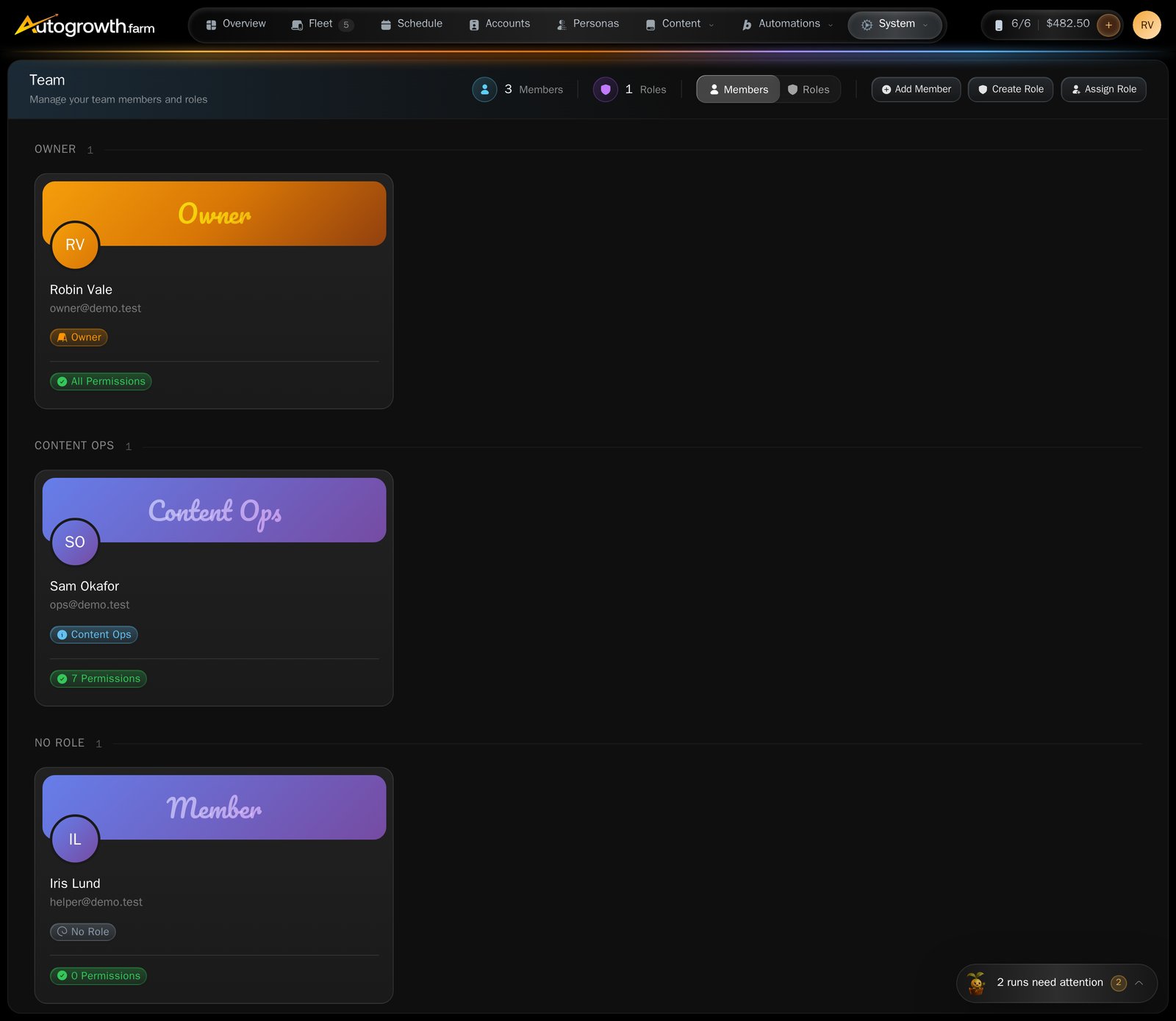
The Team page.
Invite someone
Press Add Member. You need their email address and their name; both are required. What happens next is worth knowing, because it is not an invitation link:1
An account is created immediately
AutoGrowth makes the user there and then, with a generated temporary password,
and puts them in the Member role.
2
They get an email with credentials
The subject is “Welcome to” and your organization’s name. It shows their
Email Address and
their Temporary Password, with a Verify Email & Get Started button.
3
They verify and change the password
The email says it: “We recommend changing your password after your first
login.” Nobody can sign in before verifying.
Owners and members
There are two seeded roles and no hidden third one.- Owner — the person who signed the organization up. An owner passes every permission check without exception and sees every phone. There is exactly one, set at signup.
- Member — everyone else. A member starts with no permissions at all, and is given them through a role.
The permissions
There are 24, in eight groups. These are the exact labels on the role editor.
Two of these decide more than they look like they do:
- Remote control devices covers driving a phone from the browser and managing its agent — and, on GrapheneOS phones, saving the keyguard PIN that unlocks a profile.
- Manage billing is what lets someone spend the organization’s credit balance.
What a member sees
Permissions decide what someone can do. Two separate rules decide what they can see.- Phones. A member sees only the phones assigned to them, plus any phone carrying one of their tags. Everything else is absent from their Fleet page. Owners see all of them. Assign phones and tags from the phone’s card — see Your fleet.
- Their own work. Accounts, content, prompts and runs are scoped to the person who created them.
Removing someone
You cannot remove yourself, and you cannot remove the owner. There is also no ownership transfer and no way to leave an organization on your own. The owner is set once, when the organization is created; if it has to change, that is a support matter — see Getting help.What to read next
Your fleet
Assign phones and tags, which is what member visibility runs on.
Credits and billing
Credits, slots and licences — and who is allowed to spend them.