

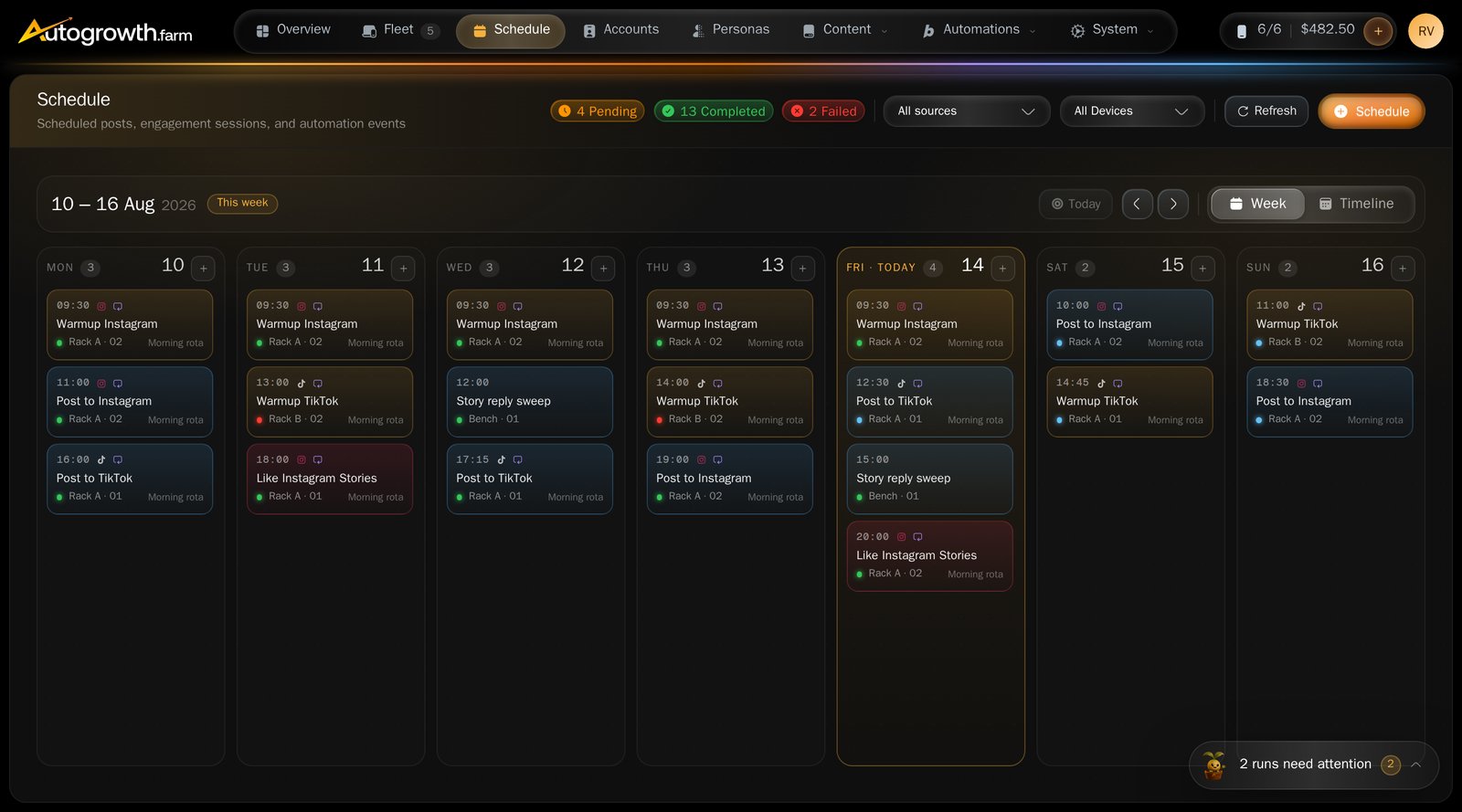
The Schedule screen, week view.
Schedule one run
Press Schedule. The dialog is headed Schedule a new execution, or Run instantly if you started it from a phone.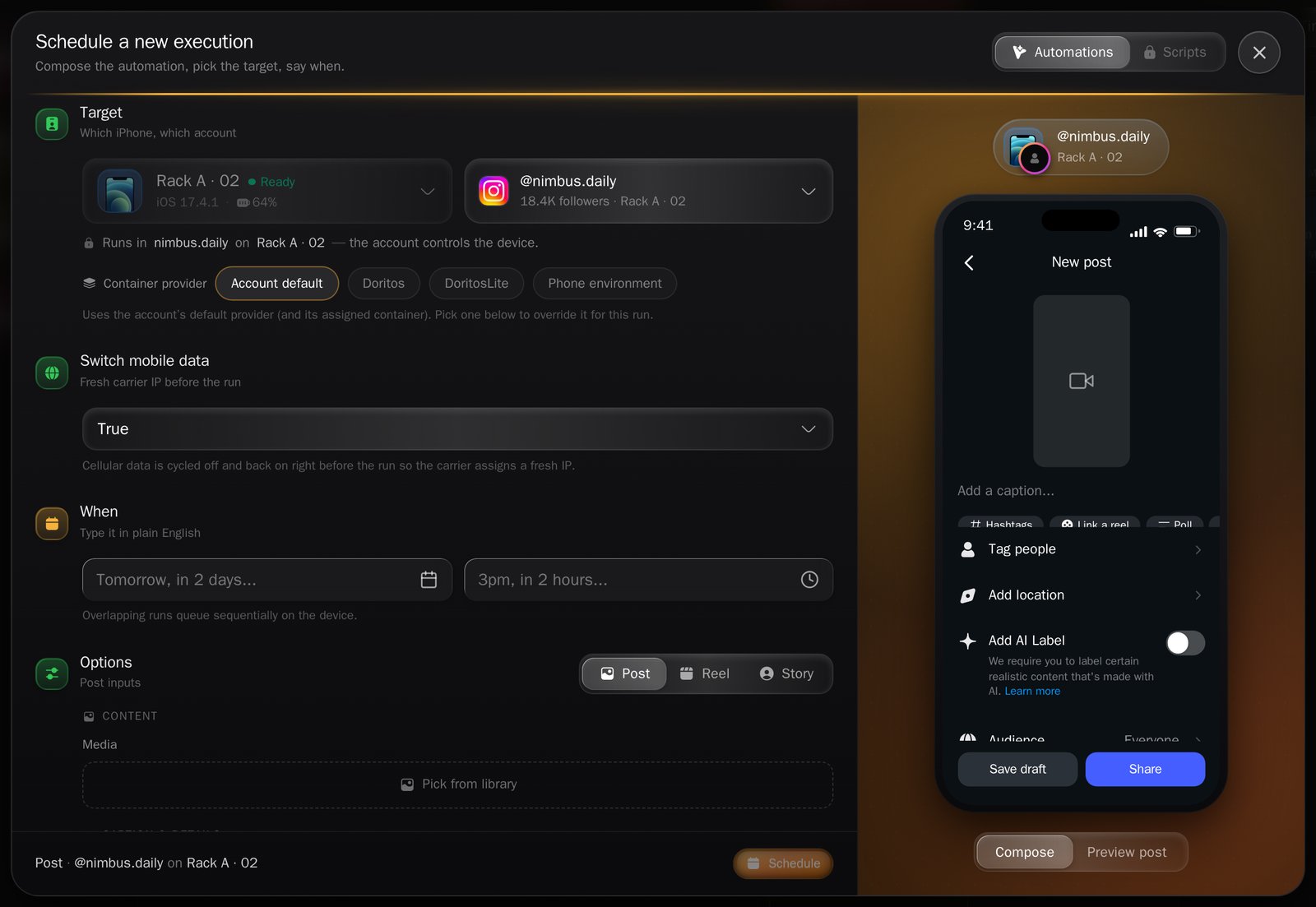
The scheduling dialog.
1
Pick what runs
The Automations tab lists the catalogue. The
Scripts tab beside it opens a coming-soon notice — the Script Builder is
locked. Without Autogrowth MAX the Automations tab is dimmed and opens the
upgrade dialog instead.
2
Pick the target
An account, a phone, or both. If the account is already tied to a phone, the
phone picker locks itself — the account controls the device. An account with
nowhere to run warns you to assign that account to a phone or container
before scheduling it.
3
Decide about mobile data
Switch mobile data is on by default, which cycles the phone’s cellular data
off and on just before the run so the carrier hands out a fresh IP.
4
Say when
The When step takes plain English — “Tomorrow”, “in 2 days”, “3pm”, “in 2
hours”.
5
Fill in the options
The last step is the automation’s own inputs: caption, media, duration,
whatever that automation asks for.
Schedule a lot of runs at once
Hover Schedule and choose Bulk schedule. The dialog is titled Bulk Schedule and works as a table — “Mix devices and accounts freely — one row per execution”.- Date, Switch mobile data and AI Recovery are set once at the top and apply to every row.
- Add All Devices fills the table with your fleet.
- The interval filler spaces rows out: a Start time, every so many minutes or hours, then Apply to selected.
What each status means
A run is not lost because the phone was offline at the scheduled minute. It stays
Pending and is retried on every poll for two hours. Only after that does it turn
Skipped. A run queued behind another job on the same phone gets extra time as it
waits, and a Running job that stops reporting for 15 minutes is written off as
failed.
Overlaps are allowed on purpose
A phone runs one job at a time. If you schedule two things at once on the same phone, neither is refused — they queue and run in order. The dialog may tell you a run conflicts with another. That is information, not a rejection. Nothing is blocked, and you do not need to move it.Cancelling
- On the calendar, a Pending run can be deleted from its card.
- In the remote control viewer, the Queue panel offers Stop on the live run and Cancel in the row menu.
Where the results are
Logs lists every finished run: its status, the automation, the phone, the scheduled time, how long it took, and a red preview of the error if there was one. Filter by Completed, Failed, Skipped or Cancelled, and by device. Each row ends in View Logs, or the grey words No logs when the phone recorded nothing. Logs are kept for 60 days.When a run fails, the phone also saves a screenshot of the screen at the moment it
broke. That screenshot is stored against the execution but is not shown anywhere in
the dashboard today. If you need it for a support case, say so when you
get in touch.
Why a run was refused
What to read next
Automations
The twenty routines you can schedule, and what each one needs.
Workflows
Stop scheduling the same day by hand.