

Build, Start and Stop
Three buttons, and the difference matters. This is how the Companion itself puts it:- Build — install WebDriverAgent onto the phone. You do this once per phone, or after an iOS update.
- Start — launch WDA so the phone goes online and streamable. You do this each session.
- Stop — take the phone offline without removing WDA.
- If a phone misbehaves, Stop → Build → Start gives it a fresh WDA.
How long each step takes
Build walks through five stages, and the Companion names each one as it goes:
Budget about five minutes for a first build. Start is quicker: the Companion
launches WDA and waits up to 90 seconds for it to answer. If it does not answer in
that time, the developer app almost certainly has not been trusted on the phone
yet — see Connect your phones.
Once a phone is running, the Companion checks its health every 30 seconds. Two
failures in a row and it restarts WDA on its own, up to three times, and then
rebuilds. You do not have to watch for this; it is why a phone sometimes goes
Starting again without you touching anything.
The two ways WDA gets signed
Pick one. Server signing is the recommended default and is set up once for the whole organization; Apple ID signing is set up on each Mac by whoever runs it.Server signing
The dashboard signs WDA for you, so nothing about signing has to exist on the Macs your operators use. Set it up in Settings → WDA Signing — “Sign WebDriverAgent on our servers or locally in the Companion”. The section is only visible to people whose role includes Manage integrations.1
Create an App Store Connect API key
In App Store Connect: Users and Access → Integrations → App Store Connect
API, with the Admin role. Download the
AuthKey_*.p8 file — Apple only
lets you download it once.2
Add the account in AutoGrowth
Press Add account and fill in Label, Issuer ID and Key ID,
then upload the AuthKey .p8 file. Everything comes straight off the App
Store Connect page.
3
Press Bootstrap
The row shows Needs bootstrap until you do. Bootstrap creates the signing
certificate and the app identifiers AutoGrowth needs. When it finishes the
row reads Ready.
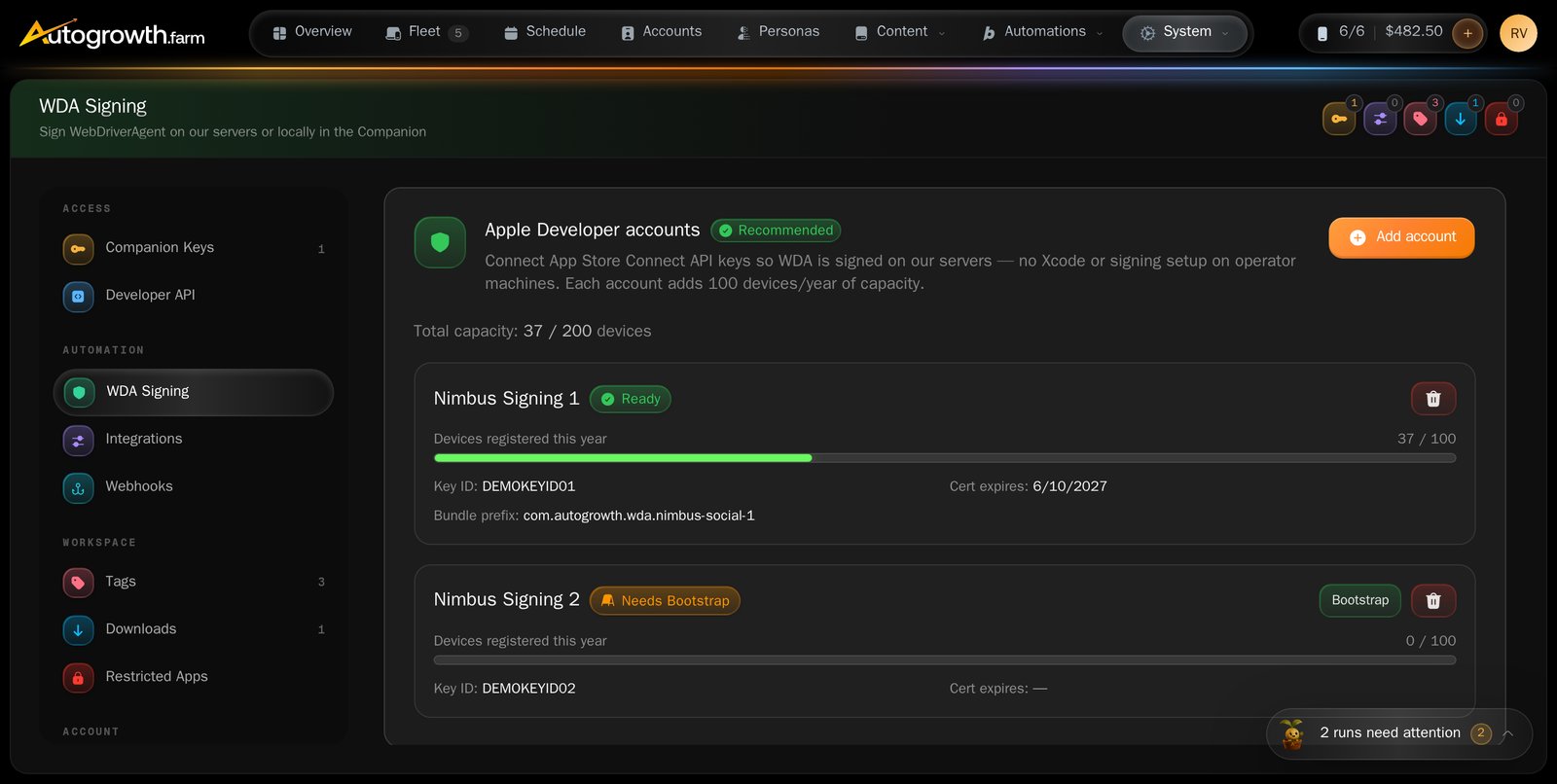
Settings → WDA Signing, with two Apple Developer accounts connected.
Apple ID signing
The Companion signs WDA on the Mac itself, using an Apple ID you sign in with. Any Apple ID works, including a free one — no paid Developer Program membership and no App Store Connect key.1
Open Companion → Settings → Signing
The WDA signing method tile has two options: Server and Apple ID.
Choose Apple ID.
2
Sign in with the Apple ID
Enter the email and password in the Apple ID tile and press Sign in.
The password is stored in your macOS Keychain and is sent only to Apple.
3
Enter the two-factor code
A Two-factor authentication dialog asks for the six-digit code sent to
your trusted Apple devices. Enter it promptly — it gives up after five
minutes with “2FA timed out (no code entered)”, and you have to press
Build again.
Companion → Settings → Signing, set to Apple ID.
Free Apple IDs issue 7-day profiles. The Companion re-signs and reinstalls
WDA before they lapse — it checks every half hour and renews anything with less
than two days left — so phones keep working without you doing anything. The
certificate underneath lasts about a year and is shared across every phone that
Mac manages.
The statuses you will see
While the agent is coming up or going down, the dashboard shows one pill and the Companion shows another. They line up like this:
The dashboard’s device panel also shows a small agent chip carrying the current
phase — “build 40%”, “starting”, “ready”, “error” — and a Last message row
with the Companion’s own wording. That message is the useful one when a build
stalls.
If you do not have the Remote control devices permission, the chip reads
“permission required” and the buttons do nothing: “Remote control devices
permission is required to manage the agent.”
When Build or Start fails
Anything not in this list still lands in Sprout, the Companion’s assistant
panel. When it has no specific fix it shows the raw message under “Something went
wrong” — copy that text and send it to support.
What to read next
Remote control
Watching and driving a phone from the browser.
Troubleshooting
Everything else, sorted by what you are looking at.